AI can help you create digital products faster, but it does not guarantee sales, passive income, or marketplace success. A digital product only works when it solves a real problem, looks useful, follows platform rules, and reaches the right buyers.
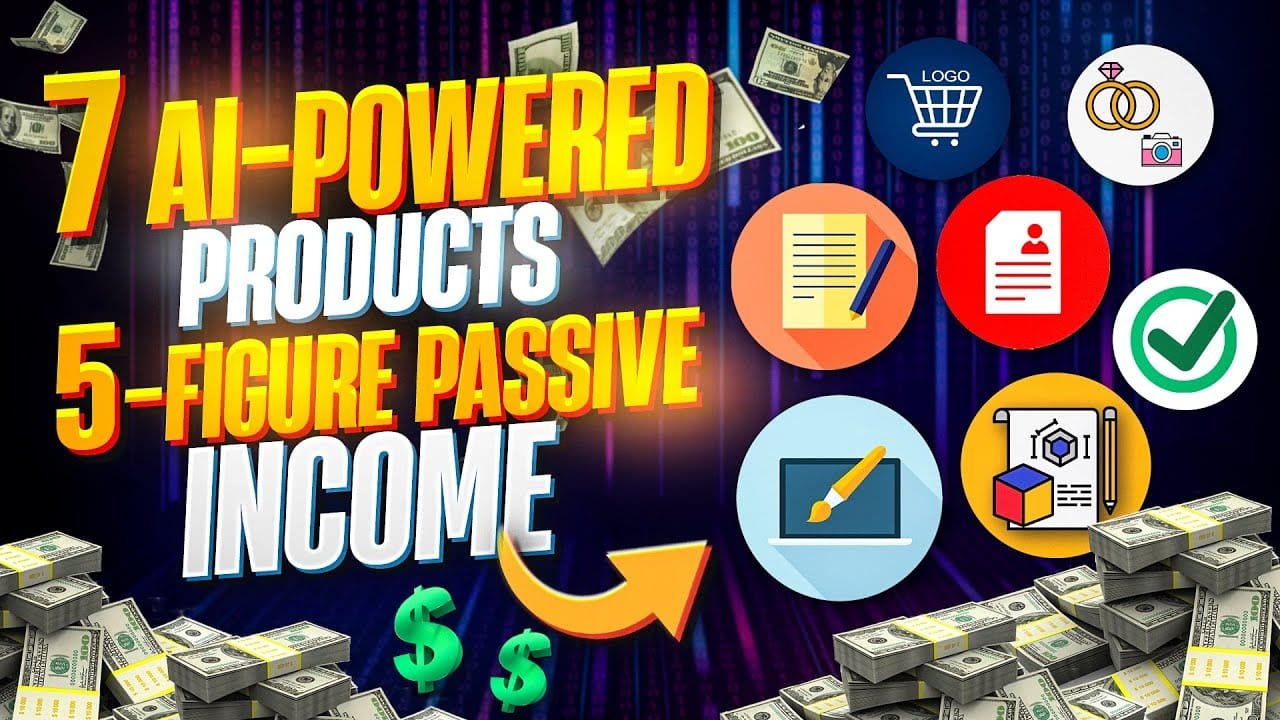
In this guide, you will learn seven digital product ideas you can create with AI, including clip art, coloring worksheets, wall art, seamless patterns, t-shirt designs, wedding invitations, and business cards. You will also learn the tools you may need, the risks to check before selling, and a simple beginner workflow for validating your product idea.
If you are still comparing different AI income methods, start with our full Make Money With AI guide. If you want to explore more articles in this topic cluster, visit our Make Money With AI category.
Income and licensing disclaimer: This guide is for educational purposes only. Selling digital products is not guaranteed income. Results depend on product quality, niche demand, marketplace competition, pricing, traffic, reviews, and your ability to create useful products. Always check the commercial-use rules of each AI tool and marketplace before selling AI-generated designs.
What to Know Before Selling AI Digital Products
Before creating products, it is important to understand that AI is only part of the process. AI can help you generate ideas, draft designs, create variations, and speed up production. But the final product still needs human judgment.
A good digital product should be:
- useful for a specific buyer
- easy to download and use
- clear about licensing and commercial use
- properly formatted for the platform
- presented with good previews or mockups
- different enough from generic AI output
Do not create a product just because AI can generate it. Create a product because a real buyer has a real use for it.
7 Digital Products You Can Create With AI
| Digital Product | Best For | Difficulty | Main Risk | What to Validate First |
|---|---|---|---|---|
| Clip art | Teachers, designers, bloggers, creators | Beginner | Generic or copyright-risk designs | Demand for a specific niche or style |
| Coloring worksheets | Parents, teachers, homeschool creators | Beginner | Low-quality line art | Age group, theme, and print quality |
| Wall art | Home decor buyers, office decorators | Beginner to intermediate | Oversaturated designs | Style, niche, and mockup presentation |
| Seamless patterns | Crafters, fabric designers, stationery sellers | Intermediate | Pattern not truly seamless | Repeat quality and file format |
| T-shirt designs | Print-on-demand sellers | Intermediate | Trademark/copyright issues | Original phrase, clean design, commercial rights |
| Wedding invitations | Event planners, couples, template buyers | Intermediate | Hard-to-edit templates | Editable format and buyer instructions |
| Business cards | Small business owners and freelancers | Intermediate | Generic layout | Professional design and easy customization |
1. Creating Clip Arts Using AI
Clip art is used in presentations, worksheets, websites, invitations, planners, social media graphics, and printable resources.
AI tools can help you create clip art ideas quickly, but you still need to make sure the final images are original, clean, properly licensed, and useful for a specific audience.
Instead of creating random clip art, choose a niche first.
Examples:
- classroom clip art for teachers
- animal clip art for kids’ worksheets
- seasonal clip art for holidays
- business icons for presentations
- food or cafe-themed clip art for menus and posters
- planner stickers for digital planners
- simple icons for websites or social media
Beginner workflow for AI clip art
- Research a specific niche on marketplaces such as Etsy.
- Check what styles buyers already like, but do not copy existing sellers.
- Create original prompts for a specific theme.
- Generate multiple variations with your AI image tool.
- Remove the background if the clip art needs transparent PNG files.
- Manually review every file for broken details, distorted shapes, or bad text.
- Package the files clearly with a license note and usage instructions.
You can review marketplace demand on Etsy, but do not copy another seller’s design, listing title, mockup, or product bundle. Use marketplace research to understand demand, not to duplicate someone else’s work.
Important copyright warning
Avoid using copyrighted characters, celebrity names, brand names, or protected art styles in a way that could create legal risk.
For example, instead of creating “Superman clip art,” create an original superhero-style character that does not use protected names, logos, or recognizable costume elements.
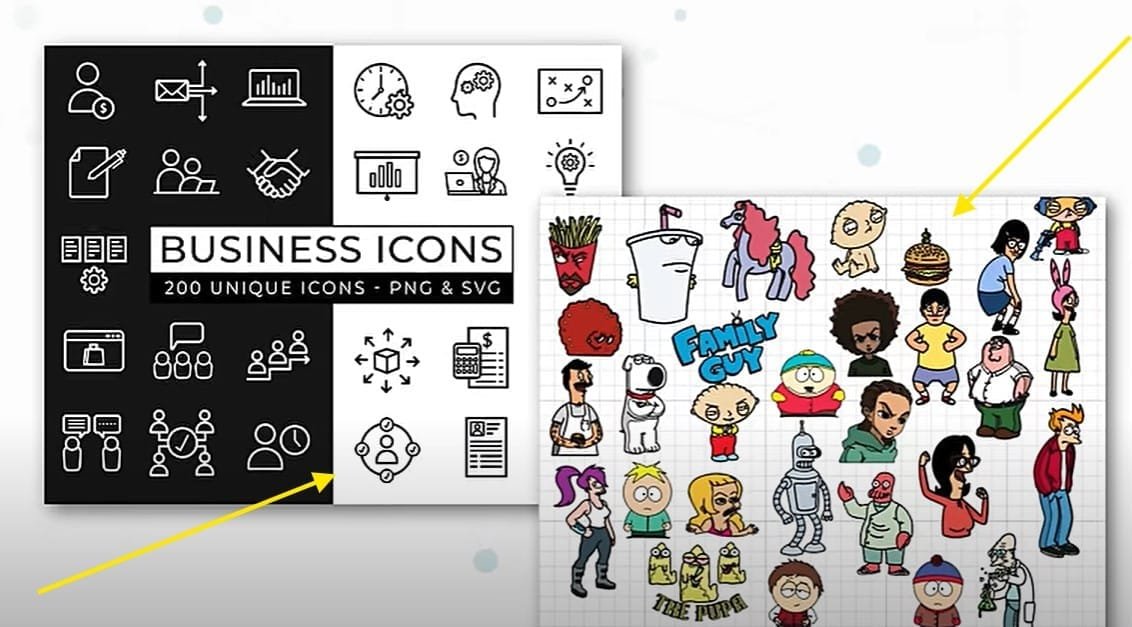
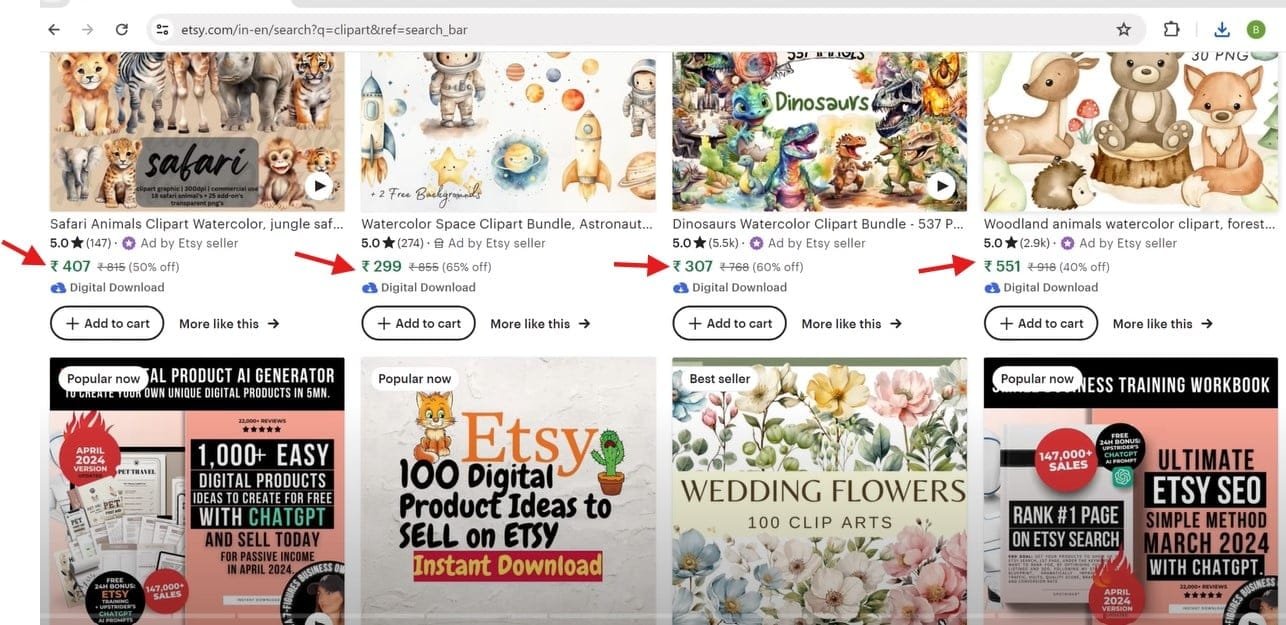
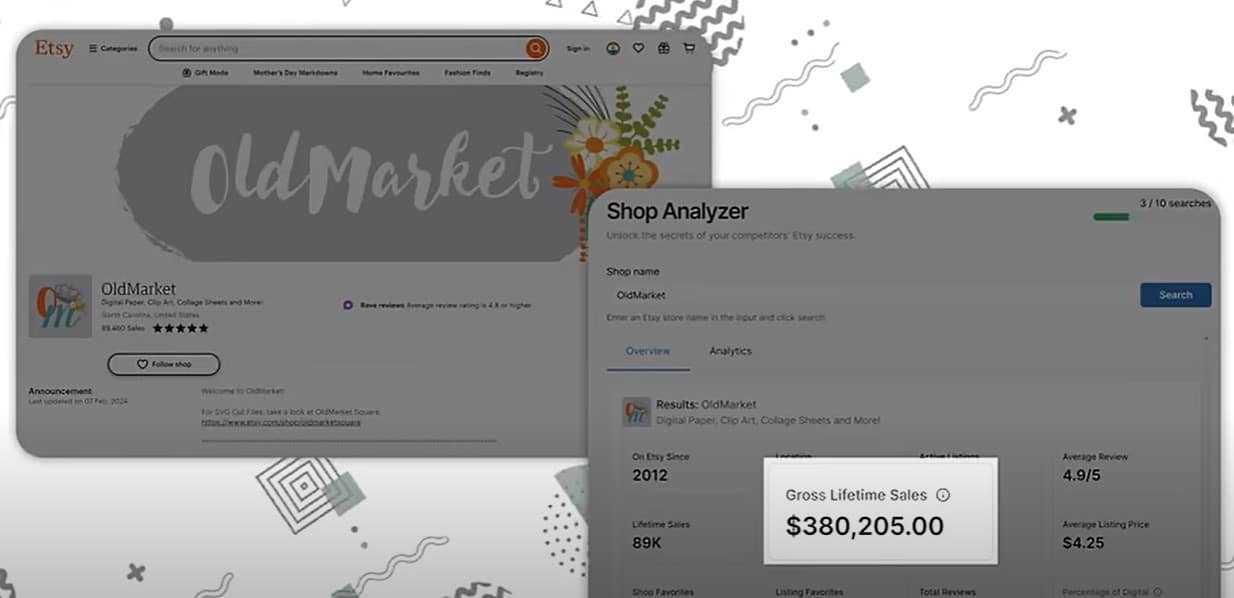
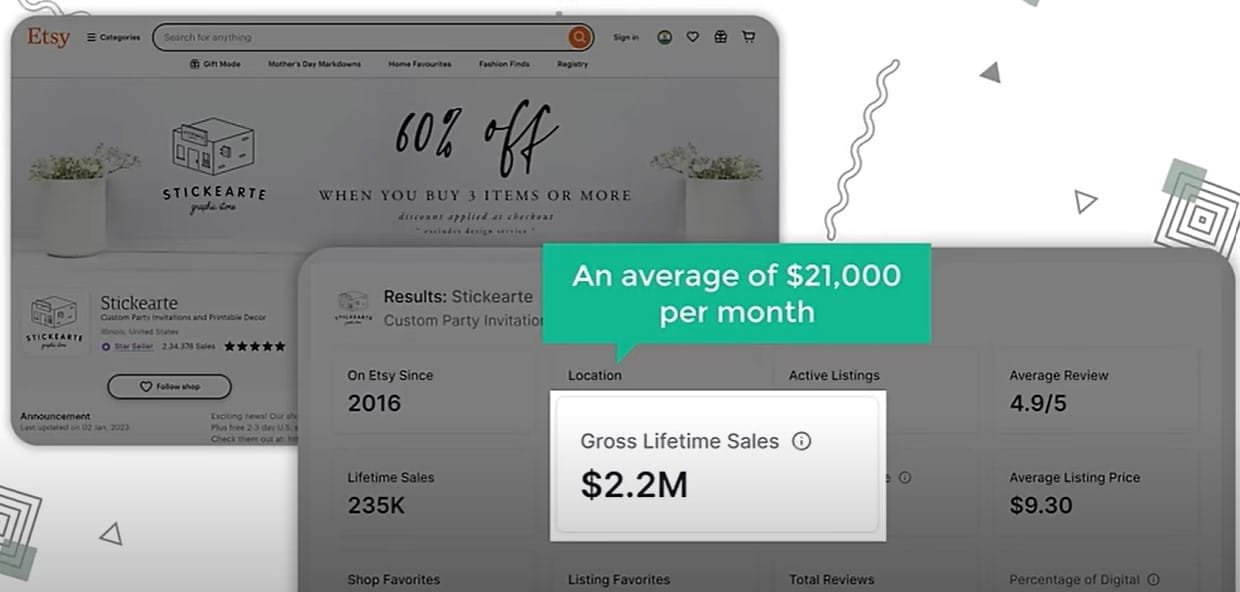
Before I show you how to create clip arts, first let’s see how well these clipart images are selling online. There’s a website called Etsy where you can buy and sell digital products. Just search for “clip art” and you will find different clip art images that people are selling on Etsy. Choose one and you’ll find the name of the seller. Click on it and you can see the total number of sales that they have made and also the clipart images which they are selling.
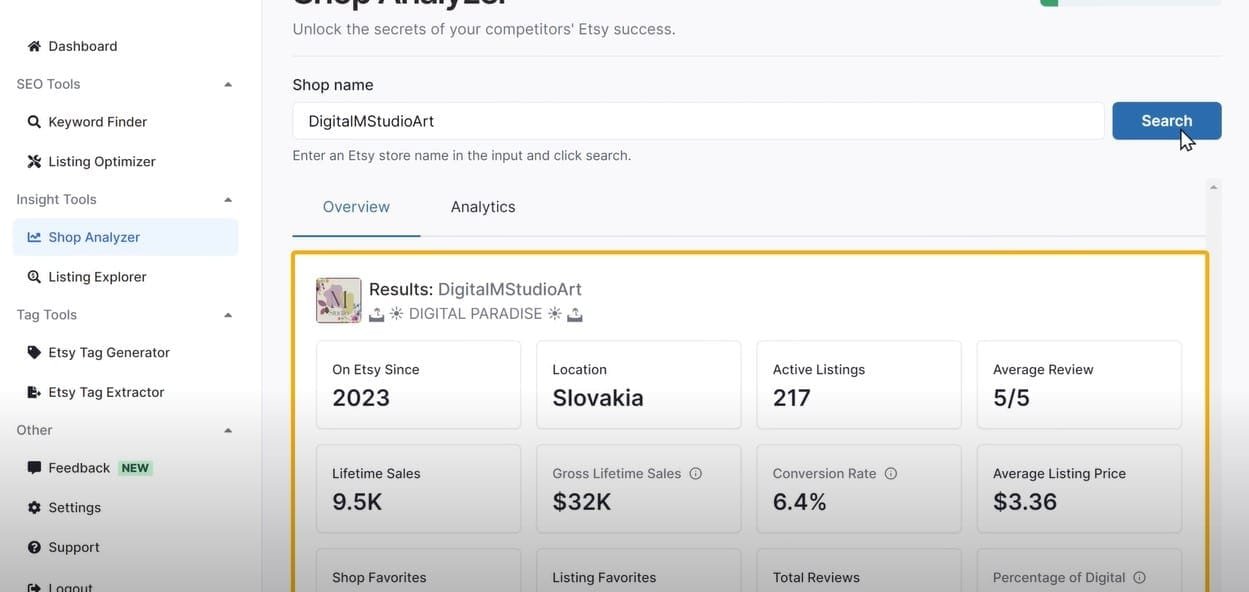
Once you know how well these clipart images are selling, next let’s see how much revenue is being generated from these clipart images. To find that out, go to Product Flint. To see the revenue of a shop, go to Shop Analyzer, then copy and paste the shop name and click search. Here you can see that we have got all the information about the shop, and you can also see the gross revenue they have made, which is $32,000 in one year, which comes down to $2,666 per month. In the same way, you can find out the sales of other shops and even other digital products.
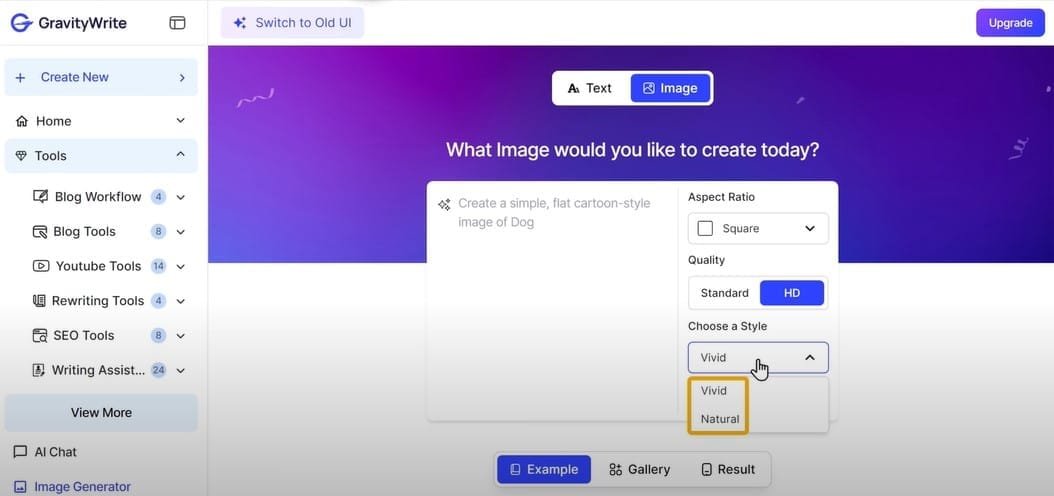
Now that you know how much money can be made selling clip art, next let’s see how we can create clip art images. To create the clipart image, go to an AI image generator. There are three methods to generate the clipart:
The first method is by describing the type of clip art you want. Just type how you want your clip art to look like. Then choose a style for your image whether you want it to look Vivid or Natural. I’m going to select Natural and click Generate Image. Within a few seconds, you can see that it has generated the clip art image, and it looks great. Similarly, you can generate different kinds of clipart images just like this.
Now let’s look at the second method, which is by using pre-made examples. Since we want to generate clip arts, just choose the Clip Art option, and here you’ll find different styles of clip arts that you can generate. Just go through them and select the one you want. I’m going to choose this one, so just click Customize Prompt, and you can see we have got the prompt which can generate this type of image.
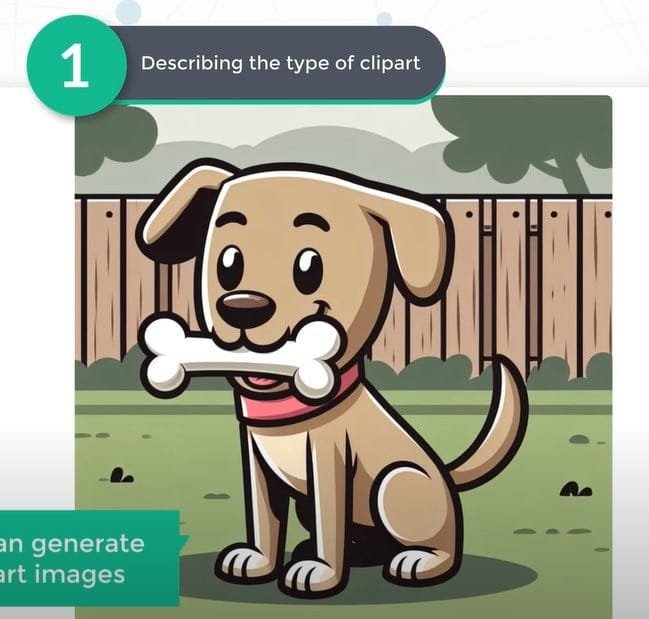
Now all we have to do is just replace the text which is given in the brackets according to the type of clipart that we want to generate. So let’s do that. I’m going to ask it to create a clip art of Superman in gibli art style, then change your style to Natural and click Generate Image. As you can see, we have got the clip art image like we asked for.
If you’re looking for free AI prompts to kickstart your faceless video creation, check out this blog post with 5 free AI video prompts that work great for digital art and animation channels.
Let’s say you want to get more unique clipart designs. You can work with an AI assistant to create unique clipart designs which no one has created before. So to do this, let’s see the third method to generate image prompts, which is by using AI Chat option. To create unique designs, you can ask the AI for an image prompt for the clip art. So I’m going to say “Create an image prompt for a clip art image of a fish like Nemo in the style of a 2D cartoon.”
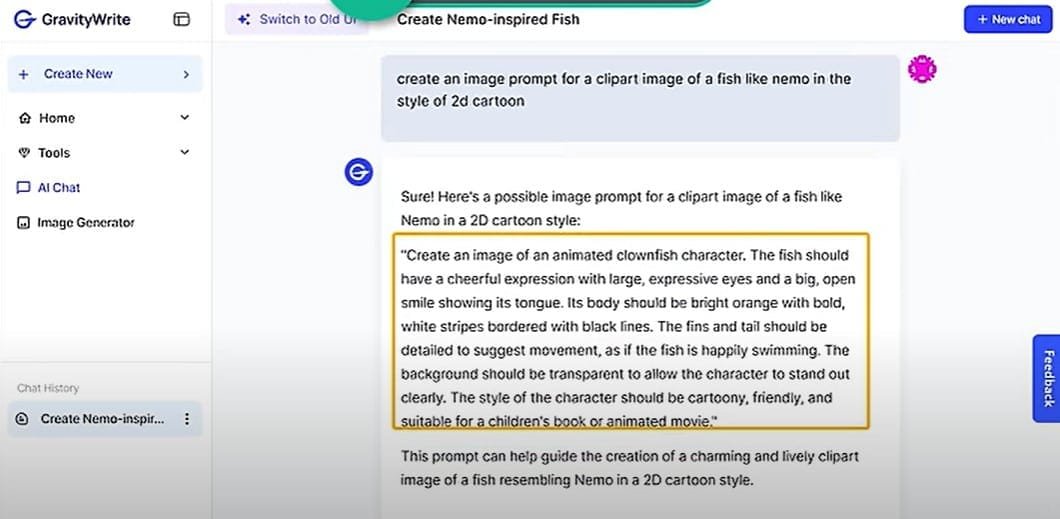
As you can see, we have got the prompt. Now we can use this prompt to generate the image. So to do that, let’s copy the prompt, then go to the Image Generator and paste it here. Then just select the quality to HD, change the style to Natural, and click Generate Image. As you can see, we have got a clip art image, and it looks good, right? So this is how you can use the AI chat to create unique clip art images.
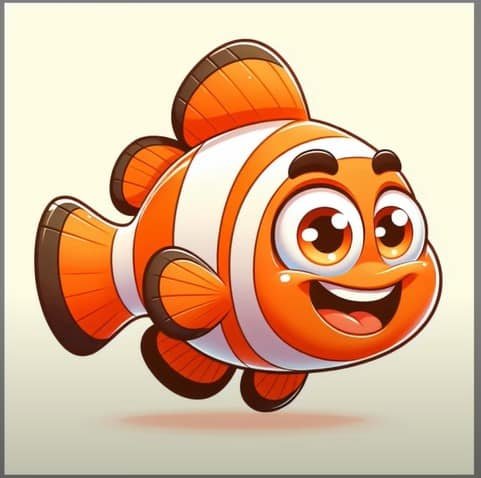
These are the three ways in which you can generate images. Once you have created the clipart image, you can see that we have a white background on the image. Now when you sell cliparts to your customers, it’s better for your image to have a transparent background. This is because when people try to use your image on other backgrounds, it’ll show the white layer, which looks bad.
But when we remove the background of the image, it’ll look much better. To remove the background, use the background removal option. You can see that the background has been removed, so now if we download the image, you can see that it doesn’t have a background image. This is how you can remove the background from your image.
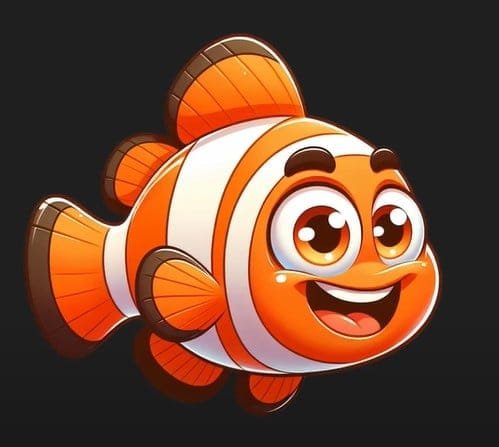
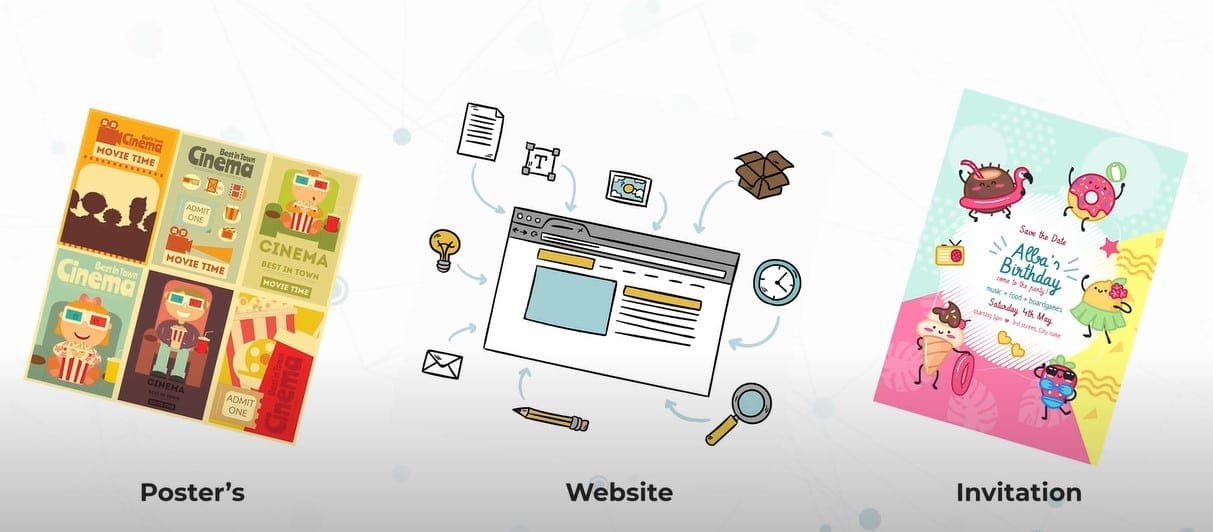
Similarly, you can create different types of clip art for people to add to their posters, websites, invitations, and more. Once you’ve created your clipart image, next let’s make money using these images.
There are a few places where you can sell your images. The first one is Etsy. Etsy is a popular online market where you can sell and purchase digital products. To learn how to set up your shop on Etsy, you can watch other youtube videos. Go ahead and create your shop on Etsy. Now Etsy might not be available in certain regions; in that case, you can use Gumroad to sell your digital products.
First, let’s see how to sell your images on Etsy. Once you have created a shop on Etsy to sell your images, click on Shop Manager, then click on Listing and click Add Listing. Once you reach this page, here you need to upload your clip art images which will be shown as a preview to the buyers. So let’s upload them. I have added a poster image of my clipart, then enter all the details about your clipart, and then make sure you select Digital as your product type. After that, enter the remaining details about your product, including the description, price, and taxes.
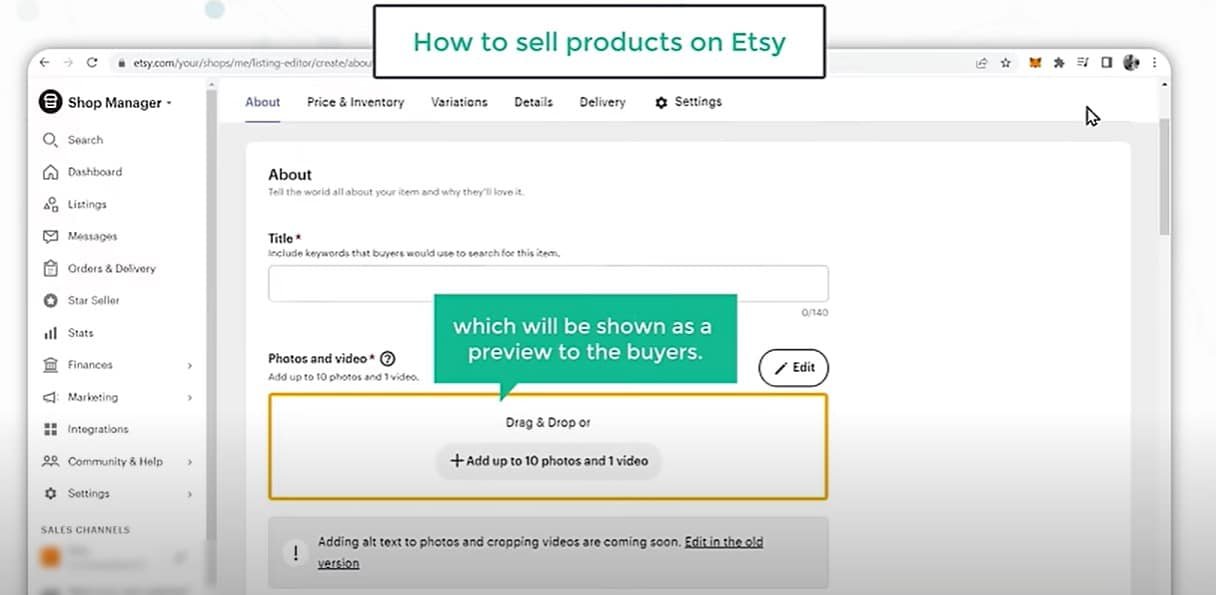
Once you have done that, next you need to upload the clipart images for your customers so that they can easily download the images as soon as they complete the purchase. So let’s upload the clipart images. Similarly, if you have created more clipart images, you can add them here. Once you’ve uploaded the images, review your listing and publish it when it’s ready.
So now if you go to Etsy and search for “fish clip art,” you can see that we have got a clip art. This is how you can sell images on Etsy, and similarly, you can sell any digital products on Etsy.
Next, let’s see how a customer can purchase and download the clip art from Etsy. To purchase this image, the customer can just click on the image, click Add to Cart, complete the payment. Once you have purchased the image, you will get this page where you can download your clip art. So let’s click on Download, and it will be downloaded, and you can see that we have got our clip art. So this is how customers can purchase your images from Etsy.
2. Coloring Worksheets Using AI
Coloring worksheets can be useful for parents, teachers, homeschool creators, daycare owners, and activity-book sellers.
AI can help generate outline-style images, but the results need careful checking. Many AI-generated coloring pages have broken lines, strange shapes, extra fingers, or details that are too complex for children.
For better results, create worksheets around a clear theme.
Examples:
- animals
- letters and numbers
- holiday activities
- simple vehicles
- classroom worksheets
- mindfulness coloring pages
- Bible or moral story worksheets
- science-themed coloring pages
- alphabet tracing pages
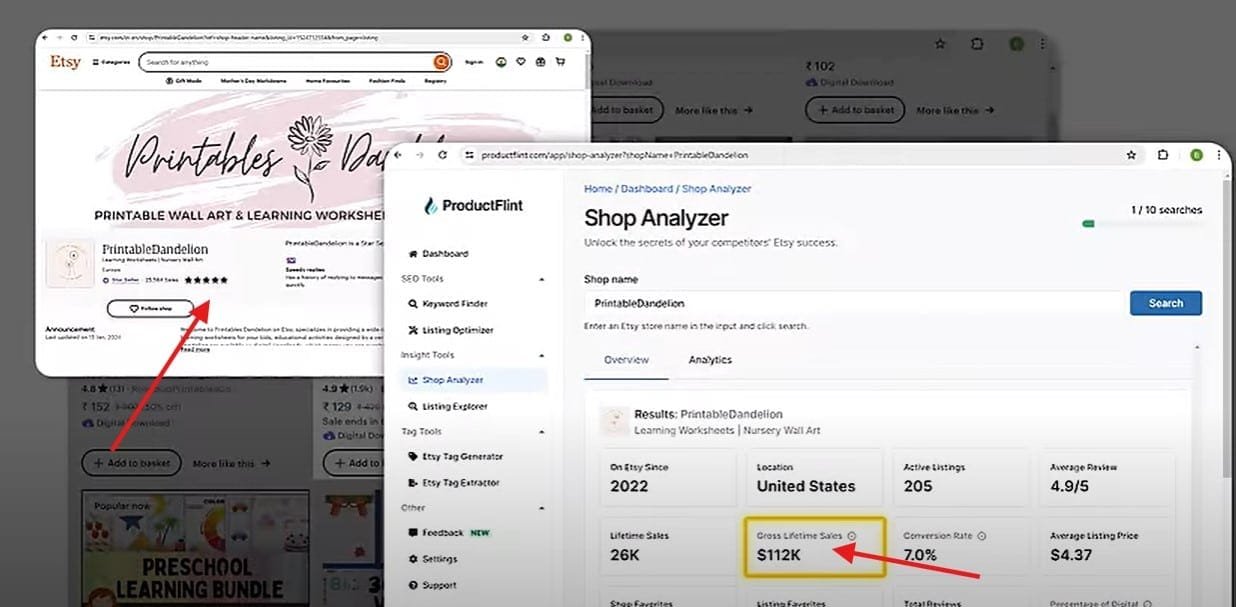
Creating and selling coloring worksheets is a simple and effective way to generate income as they have high demand in schools, daycares, and preschools. Here you can see some of the sample designs created by other people. This shop has sold more than 25,000 of these and made $112,000 in just 2 years.
How to create better coloring worksheets
- Choose the age group first.
- Use simple prompts that ask for clean black-and-white line art.
- Generate several versions and pick the cleanest one.
- Open the image in Canva, Photoshop, Photopea, or another editor.
- Remove messy details and make the lines easier to color.
- Export as PDF for printing.
- Create a small preview image for the listing.
- Test print one page before selling the bundle.
Do not sell AI worksheets without checking the details.
A worksheet that looks good at first may still print badly or confuse the child using it.
Good worksheet ideas
| Worksheet Type | Best Audience | Notes |
|---|---|---|
| Animal coloring pages | Kids, parents, teachers | Easy beginner product |
| Alphabet worksheets | Preschool and homeschool users | Add educational value |
| Holiday activity sheets | Seasonal buyers | Needs timely publishing |
| Mindfulness coloring pages | Adults and teens | Design quality matters |
| Simple tracing worksheets | Early learners | Must be clean and readable |
3. Wall Art Using AI
Wall art is one of the most common digital product ideas.
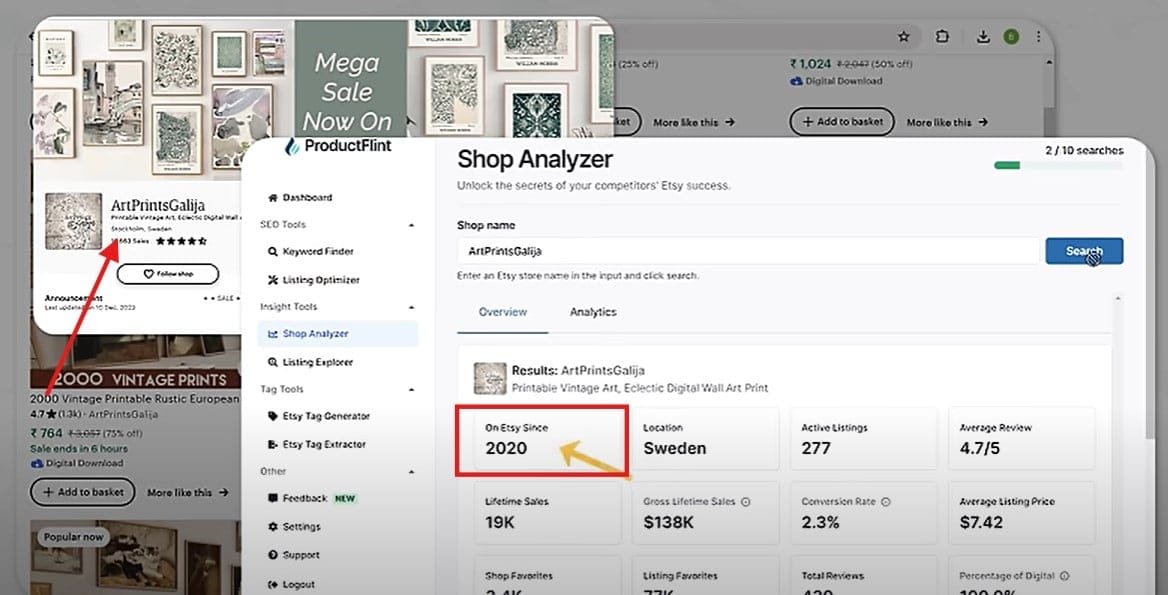
Buyers may look for printable art for bedrooms, offices, nurseries, cafes, home decor, or seasonal decoration. AI can help generate visual concepts, but wall art is also highly competitive.
The key is to avoid generic designs.
A simple prompt like “beautiful abstract wall art” will usually produce something that looks similar to thousands of other AI images.
Instead, choose a specific style, audience, room type, or emotional theme.
Examples of focused wall art niches
- minimalist office wall art for freelancers
- nursery animal prints
- botanical prints for kitchen decor
- motivational prints for home offices
- vintage-style travel posters
- neutral abstract art for modern apartments
- coffee shop wall prints
- yoga studio wall art
- classroom posters
- Christian or spiritual quote prints
Wall art workflow
- Choose a room or audience.
- Research common design styles.
- Create a prompt for a specific theme.
- Generate multiple images.
- Choose the cleanest design.
- Upscale or edit the image if needed.
- Create mockups showing the art in a room.
- Export in common print sizes.
- Include clear instructions for buyers.
4. Patterns Using AI
Patterns can be used for fabric design, wallpaper, wrapping paper, stationery, digital scrapbooking, packaging, and print-on-demand products.
AI can help generate pattern ideas, but the most important quality check is whether the pattern is truly seamless.
A seamless pattern should repeat without obvious breaks. If the edges do not align, buyers may not be able to use it properly for fabric, wallpaper, or design projects.
Pattern creation workflow
- Choose a theme such as flowers, animals, food, seasonal designs, or geometric shapes.
- Use a prompt that asks for a seamless repeating pattern.
- Generate multiple versions.
- Test the pattern repeat in a design tool.
- Fix visible seams or regenerate the pattern.
- Export in useful formats such as PNG or JPG.
- Create mockups on fabric, pillows, wrapping paper, or stationery.
Patterns can work well, but only when they are technically usable.
Do not sell a pattern until you test the repeat.
Pattern quality checklist
| Check | Why It Matters |
|---|---|
| Seamless repeat | The pattern must tile without visible breaks |
| Clean edges | Bad edges make the file hard to use |
| High resolution | Needed for printing |
| Consistent style | Makes the product look professional |
| Mockup preview | Helps buyers understand use cases |
.
5. T-shirt Design Using AI
T-shirt designs can be sold through print-on-demand platforms or marketplaces, but they also carry higher copyright and trademark risk.
Many phrases, characters, logos, sports terms, celebrity names, and brand-related ideas can create problems.
AI can help brainstorm layout ideas, generate background art, or create design concepts, but you should manually check originality and commercial rights before selling.
Safer t-shirt design ideas
- original motivational phrases
- hobby-based designs
- pet-owner designs
- fitness or gym humor
- teacher or nurse appreciation designs
- minimalist typography designs
- local pride designs without protected logos
- original cartoon-style characters
- funny niche quotes you created yourself
Do not copy trending designs.
Do not use anime characters, brand names, movie references, sports teams, or celebrity likenesses unless you have the proper rights.
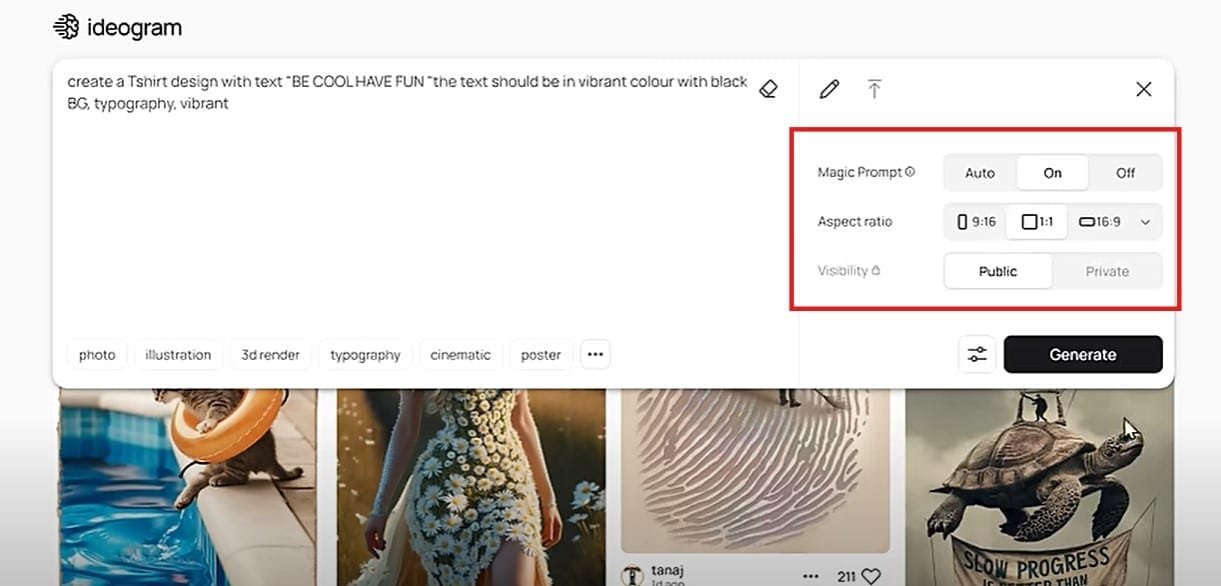
T-shirt design checklist
| Check | Why It Matters |
|---|---|
| Original phrase | Reduces trademark and copycat risk |
| Transparent background | Needed for most print-on-demand workflows |
| Readable text | AI often generates broken letters |
| High resolution | Improves print quality |
| Commercial-use rights | Protects you from licensing problems |
| Mockup preview | Helps buyers see the final product |
6. Wedding Invitations Using AI
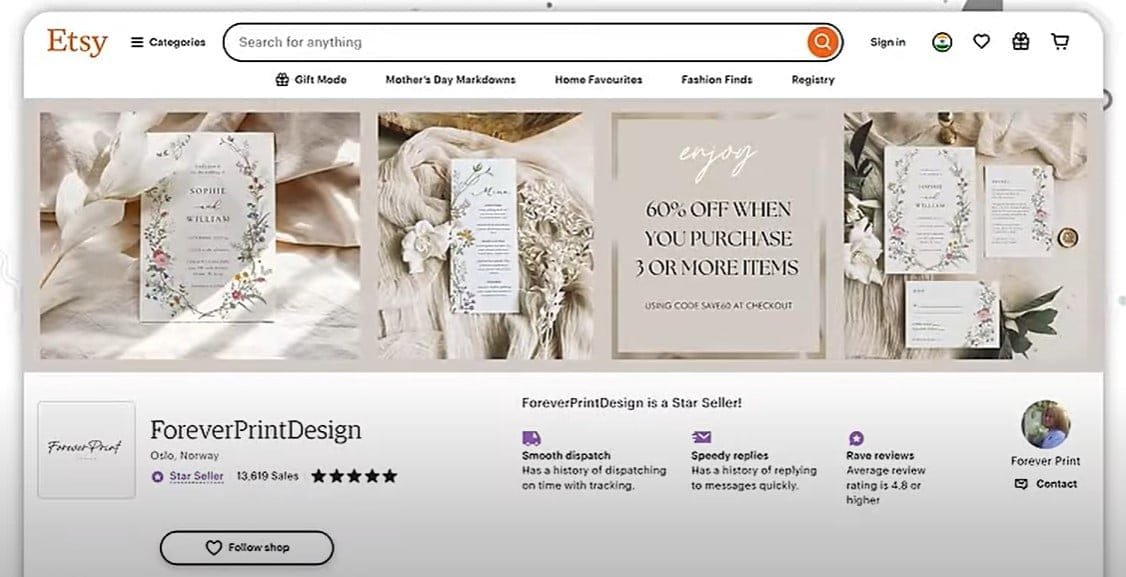
Wedding invitations, birthday invitations, baby shower invitations, and event templates can be useful digital products when they are editable and easy to use.
AI can help generate design inspiration, but buyers usually need the final product in an editable format.
For this type of product, Canva templates are often easier for customers than flat image files. A buyer may want to change names, dates, venue details, colors, or fonts.
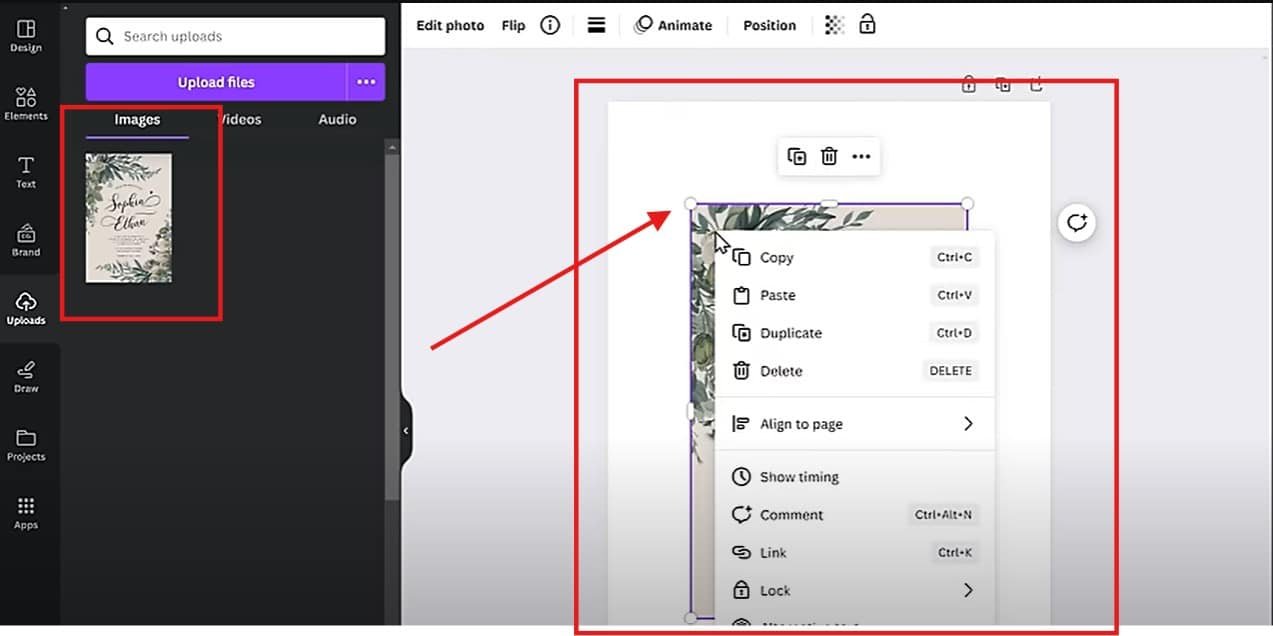
Beginner workflow for invitation templates
- Create a design concept using AI or Canva.
- Move the design into Canva or another editable design tool.
- Replace image-based text with editable text layers.
- Test whether a buyer can easily customize names and dates.
- Create instructions for editing and downloading the file.
- Export a PDF instruction file with the template link.
- Upload the instruction PDF to your marketplace listing.
Always check Canva’s content and template licensing rules before selling Canva-based templates.
You can review Canva’s Content License Agreement before selling Canva-based templates.
What buyers need in an invitation template
| Buyer Need | Why It Matters |
|---|---|
| Editable names and dates | Every event is different |
| Clear instructions | Reduces customer confusion |
| Mobile-friendly access | Many buyers edit on phones |
| Print-ready export | Buyers may print invitations |
| Font guidance | Prevents design issues |
7. Business Cards Using AI
Business cards can still be useful for freelancers, local businesses, consultants, photographers, real estate agents, and small service providers.
AI can help generate design ideas, but a good business card needs clarity, spacing, typography, and professional layout.
Business cards are not just decorative. They need to communicate contact details clearly.
What a good business card template needs
- name
- job title or business type
- phone number
- email address
- website or social profile
- logo area
- clear spacing
- editable text fields
- readable font sizes
- print-safe margins
If you sell business card templates, make sure the customer can edit the design easily.
A beautiful AI-generated image is not enough if the buyer cannot customize it.
Business card quality checklist
| Check | Why It Matters |
|---|---|
| Editable text | Buyers need to change details |
| Clean layout | Business cards must look professional |
| Print-safe size | Reduces printing problems |
| Simple design | Easier for buyers to customize |
| Clear instructions | Helps beginners use the template |
Licensing and Marketplace Checklist
Before selling any AI-generated digital product, check the rules of the tool and the marketplace.
This is one of the most important steps because different tools and platforms can have different commercial-use rules.
| Check | Why It Matters | What to Do |
|---|---|---|
| AI tool license | Not every tool gives the same commercial rights | Read the tool’s official terms before selling |
| Marketplace rules | Platforms may restrict certain digital products | Review the seller handbook or marketplace policy |
| Copyright and trademark risk | Brand names, characters, and protected phrases can cause takedowns | Avoid protected names, logos, and copied designs |
| File quality | Low-quality files lead to refunds and bad reviews | Test print or preview files before listing |
| Customer instructions | Buyers need to know how to use the product | Include a simple PDF guide or usage notes |
For marketplace rules, you can start with the Etsy Seller Handbook. If you sell through Gumroad, review Gumroad’s official Help Center.
Beginner Workflow: From Idea to First Product
If you are new, do not try to create all seven product types at once.
Pick one product type and make one small test bundle first.
| Step | Action | Output |
|---|---|---|
| 1 | Choose one niche | A focused buyer group, such as teachers or small business owners |
| 2 | Research existing products | Understanding of styles, pricing, and competition |
| 3 | Create 5 to 10 sample designs | A small test product or bundle |
| 4 | Edit and quality-check files | Cleaner, more useful files |
| 5 | Create mockups and previews | Better product presentation |
| 6 | Write a clear product description | Buyers understand what they receive |
| 7 | Publish and track feedback | Real data from views, clicks, questions, or sales |
Common Mistakes to Avoid
1. Treating AI output as a finished product
AI output usually needs editing. Check details, clean up mistakes, test file quality, and improve the design before selling.
2. Copying successful shops
Use marketplace research to understand demand, not to copy sellers. Copying designs can create trust, copyright, and platform problems.
3. Ignoring licensing rules
Always check whether the AI tool allows commercial use. Also check the rules of the platform where you plan to sell.
4. Creating products without a buyer
A product should solve a specific problem for a specific buyer. Random designs are harder to sell.
5. Using unrealistic income expectations
Some sellers may show high sales, but that does not mean a new seller can expect the same results. Treat digital products as a business experiment, not guaranteed passive income.
6. Selling files without testing them
Open your files, test print if needed, check download instructions, and make sure a customer can actually use the product.
7. Forgetting customer support
Even digital products can create customer questions. Clear instructions reduce confusion and refund requests.
Related Guides
If you want to explore other AI income methods, these guides may help:
- Make Money With AI guide
- Create Viral AI Videos Using Free Tools
- Best Way to Make Money With Google Veo 3
- How Sintra AI Assistants Are Helping Freelancers
- Use DeepSeek AI and Google Maps to Earn Money
- AI Tools Reviews Hub
Final Thoughts
AI can help you create digital products faster, but the product still needs a clear buyer, useful design, proper licensing, and a way to get traffic.
Start with one simple product type, validate demand, create a small sample set, and improve based on real feedback before spending money on tools or ads.
The safest beginner approach is to pick one product type, create a small bundle, test the quality, and learn how buyers respond.
Do not expect instant passive income. Build useful products, improve your presentation, and treat the process like a real business.
FAQ
1. Do I need any design experience to create digital products using AI?
No, you don’t need any prior design or technical experience. Most AI tools today are beginner-friendly. You just need to enter prompts (descriptions) and the tool does the heavy lifting for you.
2. Are the AI-generated images copyright-free?
It depends on the AI tool you’re using. Some platforms like Midjourney or DALL·E may require a paid subscription for commercial use. Always check the licensing terms before selling your AI-generated products.
3. What are the best platforms to sell AI-generated digital products?
Etsy (for cliparts, coloring sheets, wall art, etc.)
Gumroad (great alternative if Etsy is not available in your region)
Creative Market, DesignBundles, and your own Shopify/WordPress site are also good options.
4. How much can I realistically earn selling AI-generated products?
Earnings vary based on product quality, marketing, and niche. Some sellers earn $500–$5,000/month, while top performers reach $10,000+ monthly. With effort and consistency, you can generate sustainable passive income.
5. How do I make my digital products stand out from others?
Focus on a specific niche (e.g., nursery wall art or holiday-themed cliparts)
Use high-quality previews/mockups
Offer bundles or themed collections
Write clear and keyword-optimized product titles and descriptions
6. What file formats should I use for selling cliparts and digital prints?
For cliparts: PNG (with transparent background)
For coloring sheets & wall art: PDF or high-resolution JPG
Offering multiple formats in a ZIP file can also increase customer satisfaction.
7. How do customers receive their digital files after purchasing?
Platforms like Etsy and Gumroad handle delivery automatically. Once a purchase is complete, the buyer receives a download link to access their files instantly.
8. Can I automate the entire process?
Yes! You can:
Use AI tools to generate designs
Use Canva or Photoshop for packaging them nicely
Upload to marketplaces
Use automation tools like Zapier for notifications, or ChatGPT for generating product descriptions
9. What tools do I need to get started?
Here are a few free/paid tools to consider:
Image Generation: DALL·E, Midjourney, Leonardo AI, Bing Image Creator
Mockups: SmartMockups, Canva, Placeit
Background Remover: remove.bg
Selling Platforms: Etsy, Gumroad
SEO Tools: eRank (for Etsy), EverBee, Marmalead
10. Can I use AI to generate other types of digital products?
Absolutely! Besides cliparts and wall art, you can use AI to create:
Ebooks
Printables
Social media templates
Stock photos
Video content
Digital planners and journals